Quick answer
To use Delta Executor, open Delta, unlock it with your key, join a Roblox game and tap the floating Delta button. Paste a Lua script into the editor (or choose one from the script hub) and press Execute. Use the console tab to read errors and the saved-scripts tab to keep scripts you use often.
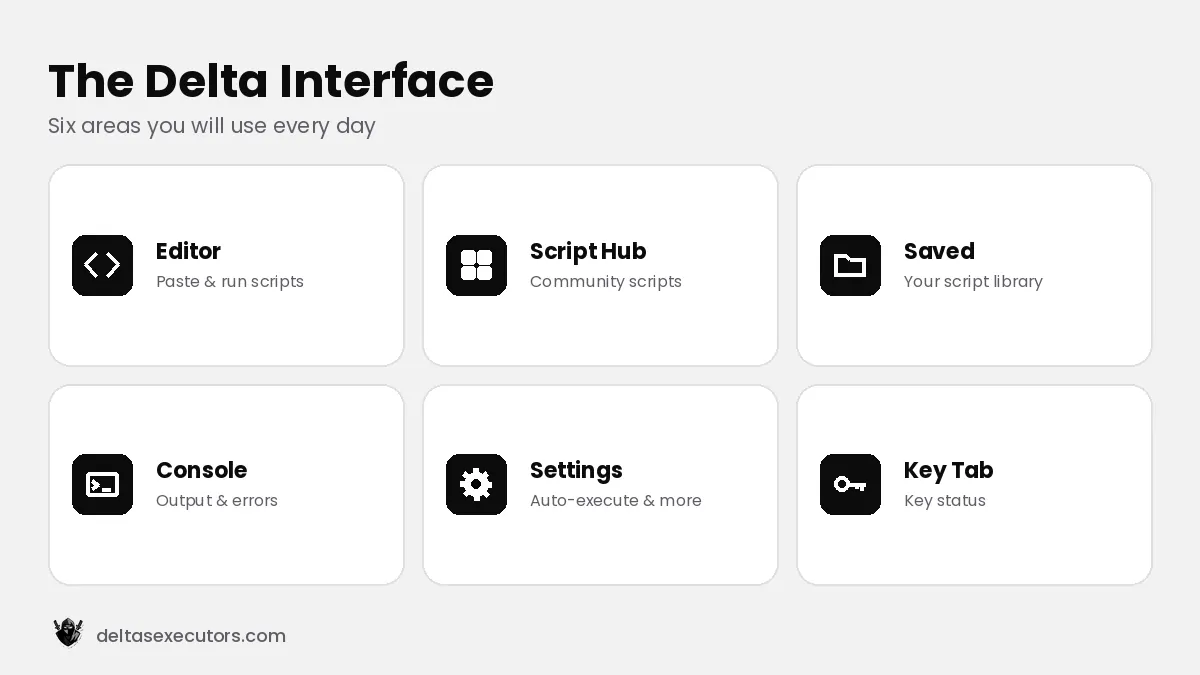
The Delta interface explained
Editor
Where you paste or write a script. Buttons: Execute, Clear, Paste and Save.
Script hub
A searchable list of community scripts for popular games.
Saved scripts
Your own library so you don’t paste the same script every time.
Console
Shows printed output and error messages from your scripts.
Settings
Button size, auto-execute, FPS unlocker and theme options.
Key tab
Shows key status and lets you paste a new key when it expires.
How to use Delta Executor on Roblox step by step
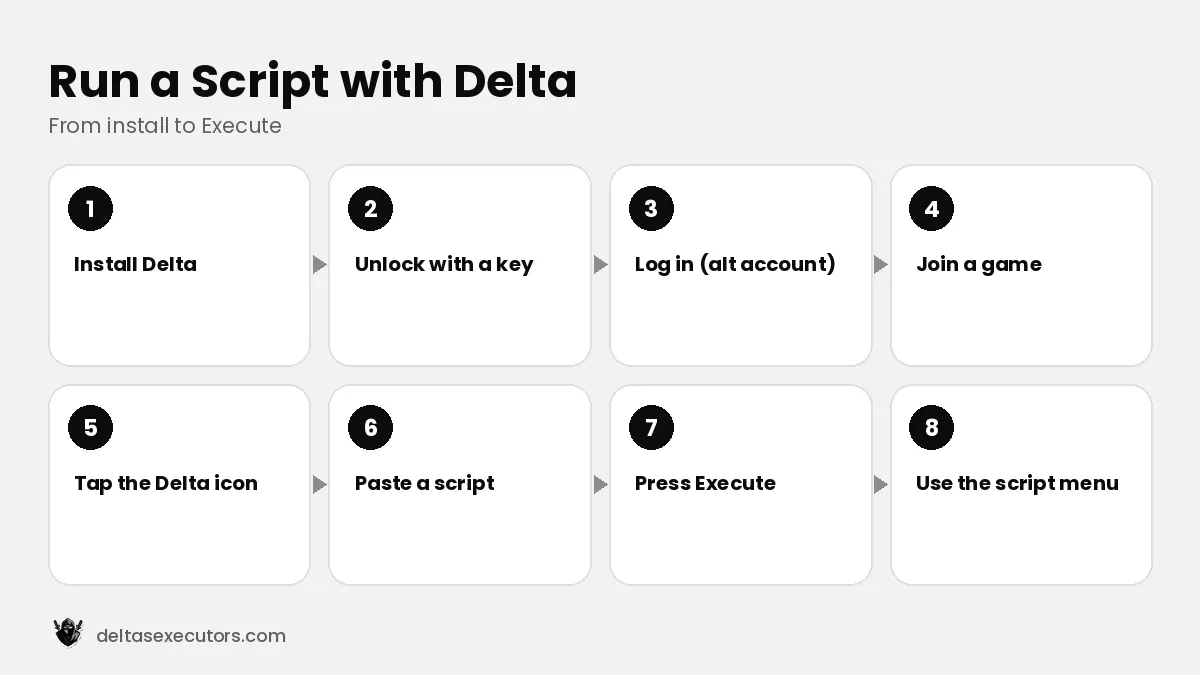
- Install Delta for your device and open it.
- Unlock it with a key — see how to get a Delta key.
- Log in to Roblox inside Delta, preferably with an alternate account.
- Join a game and wait until your character has fully loaded.
- Tap the Delta icon to open the executor.
- Paste a script into the editor or load one from the hub.
- Press Execute. A script menu (GUI) usually appears in the game.
- Close the editor and use the script’s own menu to turn features on or off.
How to use auto-execute
Auto-execute runs selected scripts automatically every time you join a game. Save a script, open its options and enable Auto Execute. Use it only for scripts you trust and that work in every game you join; otherwise disable it to avoid errors and crashes.
How to check if a script is safe
- Prefer readable scripts or well-known script hubs with many users.
- Be suspicious of scripts that request your password, cookie or 2-step codes.
- Avoid scripts that promise free Robux or item duplication — these are scams.
- Test new scripts on an alt account first.
Remember: scripts that give unfair advantages break both Roblox’s rules and most games’ rules. You can be kicked or banned. Use them responsibly and never to harm other players’ experience.
Understanding console errors
| Console message | What it means |
|---|---|
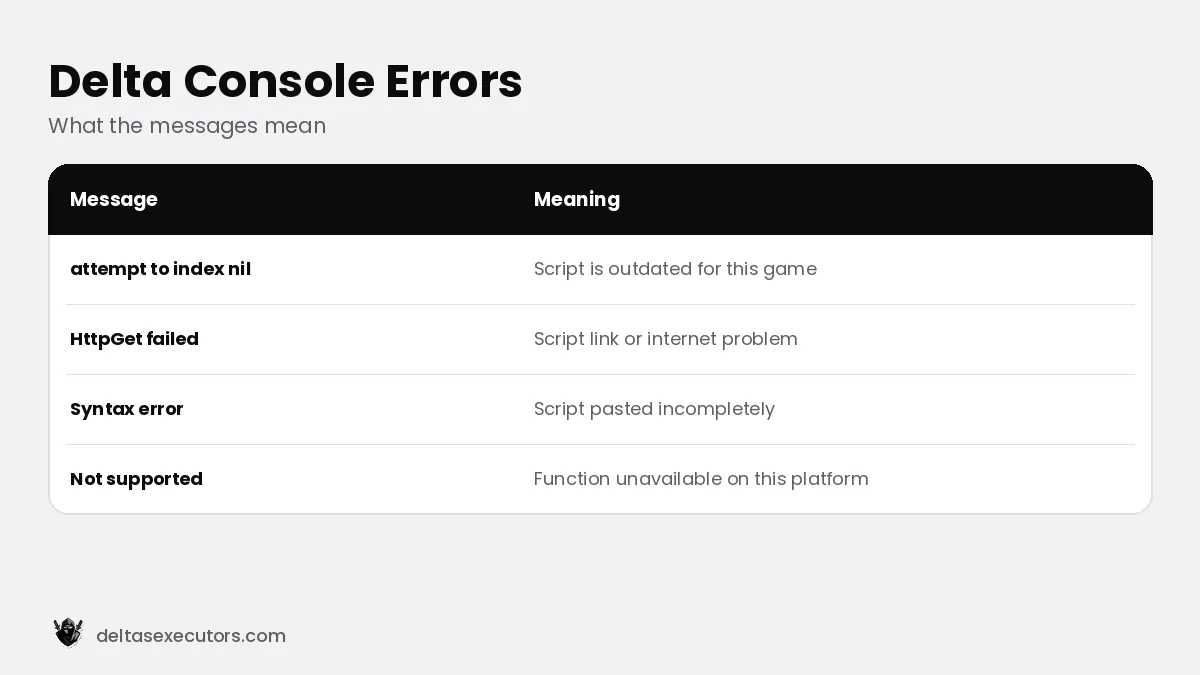
| attempt to index nil | The script expects an object the game no longer has — the script is outdated. |
| HttpGet failed | The script could not download its code — check your internet or the script link. |
| Syntax error / unexpected symbol | The script was pasted incompletely or with extra characters. |
| Not supported | The script uses a function Delta does not support on this platform. |
How to Use Delta FAQs
How do I use Delta Executor?
Unlock Delta with a key, join a Roblox game, tap the Delta icon, paste a script and press Execute.
Where do I paste scripts in Delta?
In the editor tab of the Delta overlay. You can also load scripts from the built-in script hub or your saved scripts.
What is auto-execute in Delta?
Auto-execute runs saved scripts automatically every time you join a game. Enable it only for scripts you trust.
Why does my script not work in Delta?
The script may be outdated after a game update or use functions Delta does not support. Check the console for the exact error.

Written by Delta Executors Editorial Team
We test Delta Executor builds on Android phones, iPhones and Windows PCs and update these guides after every Roblox and Delta release.